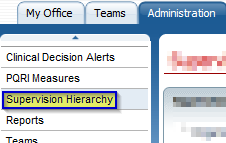
The Supervision Hierarchy screen allows administrators to manage agencies supervision hierarchy.
To access the Supervision Hierarchy functionality the screen is available by clicking on the 'Administration' tab, then by clicking the 'Supervision Hierarchy' banner on the left hand side of the screen.


View the details of a previous Hierarchies
Create a new Supervision Hierarchy
The Supervision Hierarchy screen allows staff to see a visual representation of the agencies hierarchy. It also allows staff with permissions to edit and maintain the hierarchy. To view and edit the details of a previous Hierarchy, click on the hyperlink associated with any of the levels that are displayed. Clicking on this hyperlink will take you to the level details page. To go back to the Supervision Hierarchy page simply click on the Supervision Hierarchy banner on the left hand side of the screen.
New levels can be added to the Hierarchy by clicking on the New button located in the tool bar on the upper right part of the screen. This will open a clear Supervision Level Detail page where the new hierarchy can be completed and saved.

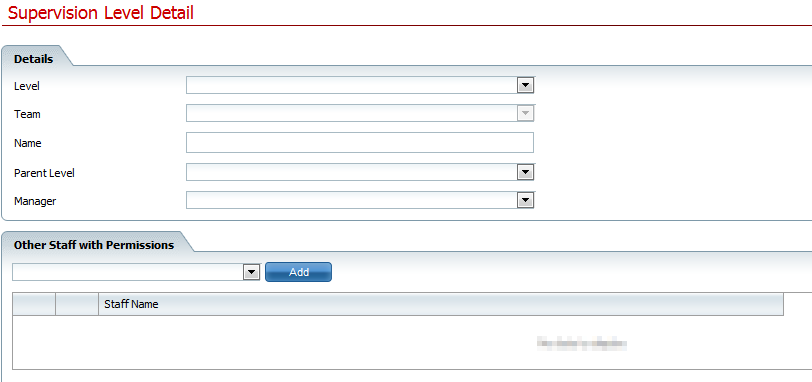
Level drop down – The ‘Level’ drop down will contain a list of each of the possible levels. For Thresholds: ‘1- Organization’, ‘2 - Division’, ‘3 - Program’, ‘4 - Team’. Depending on the selection that is made in this drop down, different values will be available in the drop downs beneath it.
Team drop down – This drop down is only enabled when the ‘Level’ is set to ‘4 - Team’.
Name – The name text box is enabled unless the ‘Level’ is set to ‘4 - Team’ . This box is used to specify the name of the level.
Parent Level – This drop down only includes values that are above the level indicated in the ‘Level’ drop down. If ‘Level’ is set to 1, then this field is disabled.
Manager – The staff that is set as the manager will have access to reports and the supervisor dashboard for the level specified and anything underneath it.
Other Staff with Permissions – This section allows multiple staff to have access to the same reports and supervisor dashboard items that the manager has access to.
To save, click on the Save icon located in the tool bar on the upper right part of the screen. Clicking this icon will save your changes made to the hierarchy..


SmartCareEHR User Help
Version 2.1
Copyright © 2012 Streamline Healthcare Solutions